Drive & library
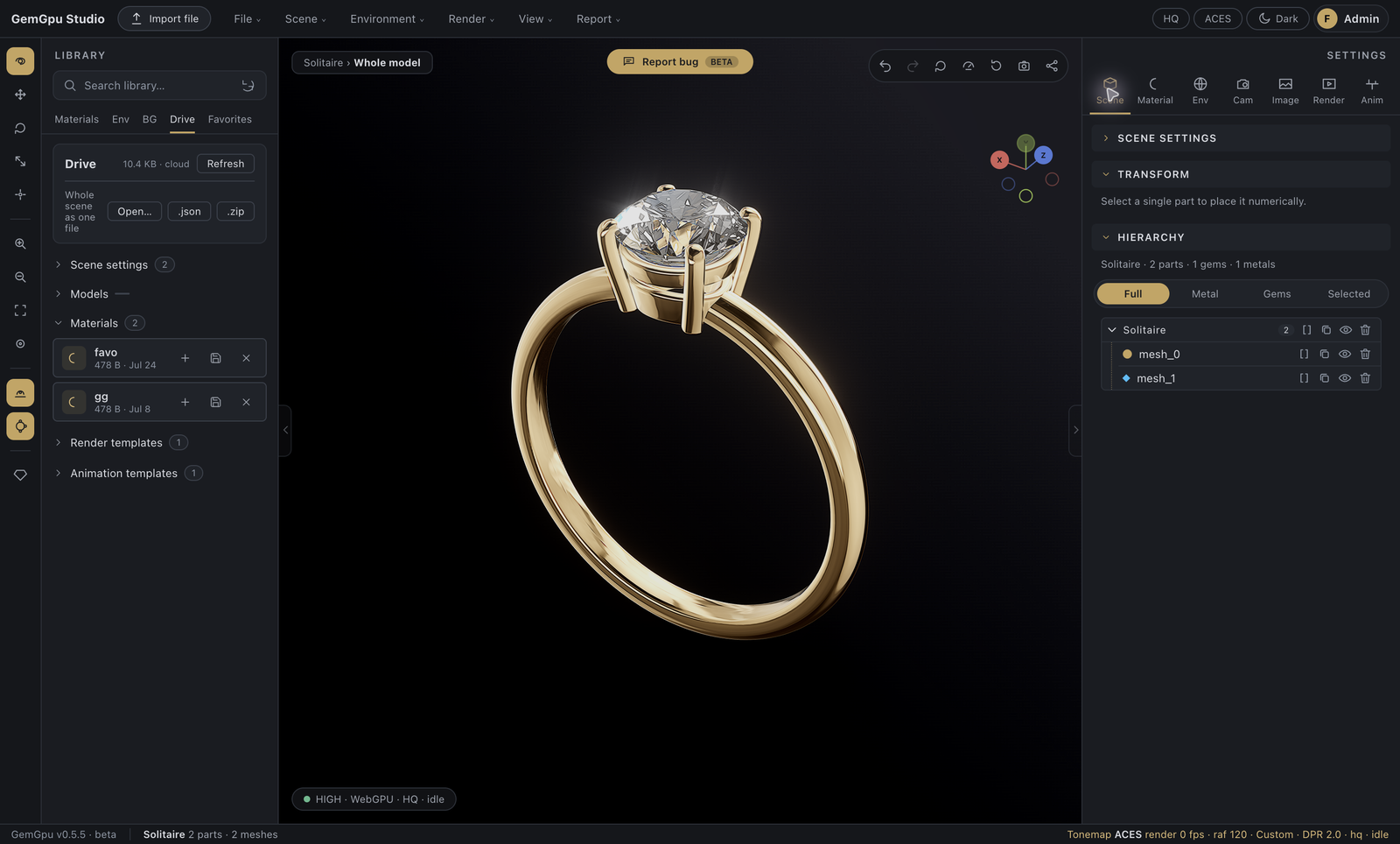
Drive is your cloud workspace: everything you save follows your account to any machine. The library's Drive tab is where it all lives.
What saves to Drive
| Document | Saved from | What it captures |
|---|---|---|
| Scene settings | Scene tab ▸ Save to Drive | The complete look: materials, environment, lighting, camera, image grade, animation, branding — everything except model geometry. |
| Materials | Material tab ▸ Save new gem/metal/surface to Drive | One named material, with a live thumbnail captured from your viewport. |
| Render templates | Render menu ▸ Save render template | Your delivery recipe — frame, samples, grade, effects. |
| Animation templates | Anim tab ▸ Save template | A whole timeline, reusable on any piece. |
| Models | Scene tab ▸ Save model to Drive | Your imported model's geometry — the explicit, opt-in upload. |
Scene settings apply to whatever model is loaded — save the look once, reuse it across a collection. If a scene references a model you saved to Drive, it restores complete on any machine.
Organize
- Search — the dock's search field filters every Drive section instantly.
- Rename — double-click any document's name and type the new one.
- Tags & folders — each card's organize control adds comma-separated tags and a folder; sections group by folder, and search matches tags too.
- Thumbnails — saved materials show a capture of the piece as it looked when you saved.
Whole-scene files
At the top of the tab:
- .json — downloads the scene settings as one small file.
- .zip — downloads a scene bundle: settings plus your imported models and custom HDRIs. The complete handoff — send it to anyone.
- Open… — loads either.
Deleting
Deleting is permanent, so it's a two-step click — the button arms with "Really delete?" and only a second click within a few seconds executes.
Storage & the usage figure
The header shows your total cloud usage — documents plus uploaded models. Custom HDRI pixels live in your browser (they're large); pack them in a scene bundle to move them between machines.
Autosave (not Drive)
Autosave is crash insurance in this browser — every few seconds while you work, plus on tab close. It never uploads anywhere and never restores on its own: after an interruption, the start screen offers Restore last session and you decide.
Accounts, security, and sessions
The account chip (top right) opens your account menu: email and verification state, Security (add platform passkeys or hardware security keys, activate MFA with one-time recovery codes), and Sign out. Signing out intentionally clears this browser's working data for the account — machines you walk away from stay clean.